Verifying the setup worked
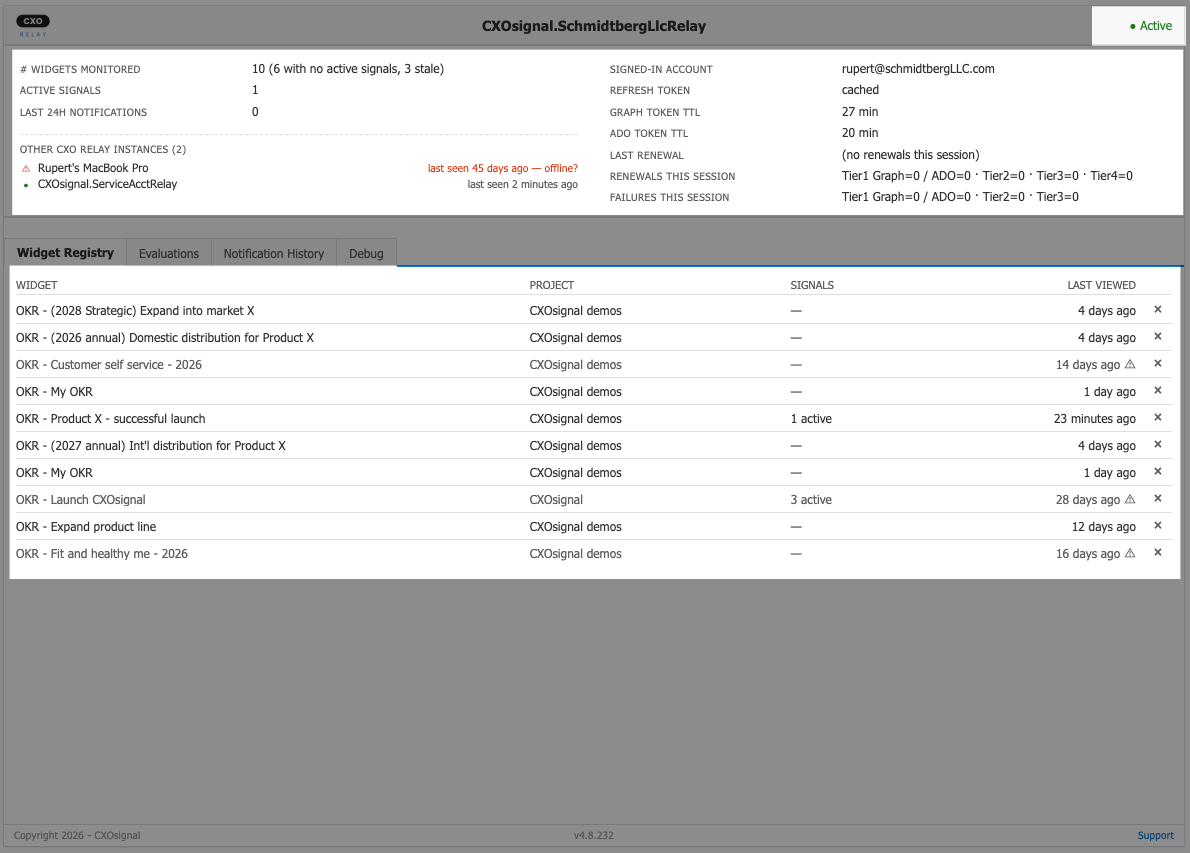
Look at the CXOrelay widget on the dashboard. You should see:
- The header status pill shows ● Active in green.
- Below the header, a two-column block. The left column shows your widget stats (# Widgets monitored, Active signals, Last 24h notifications) and below them a list of "Other CXOrelay instances" (probably empty if this is your first install).
- The right column shows your auth state: Signed-in account, Refresh token: cached, Graph token TTL: ~60 min, ADO token TTL: ~60 min, Last renewal (initially "(no renewals this session)"), and per-tier renewal counters.
- Below the top bar, four tabs: Widget Registry, Evaluations, Notification History, Debug.
Click Widget Registry — you should see one row per OKRsignal widget you've configured. If you have OKRsignal widgets in your project but none show up here, give it 5 minutes (the relay does a fresh discovery on each cycle) and refresh.
What's next
- Test an email. In your OKRsignal widget's Signals tab, find a Signal you can manually trigger (the "Test" button next to each Signal). Click it. Within a few minutes, CXOrelay should send an email to the recipients configured on that Signal. Confirm it arrives.
- Keep the dashboard tab open. CXOrelay runs as long as that browser tab is open. Close the tab and CXOrelay stops working.
- To set up your dedicated machine as always-on / unattended, keep an eye on the CXOrelay support pages — guides for configuring your Mac as a persistent always-on host are coming soon.
Was this article helpful?