Connect/Disconnect existing Epics
If your team already has Epics in Azure DevOps that represent the delivery work for an OKR, you can connect them to an OKR.
Edit mode required
You must be in edit mode to connect or disconnect Epics. Click the Edit button on the OKRsignal widget to enter edit mode.
Click on Edit this Epic list
This will open a dialog box where you can add or remove existing Epics.
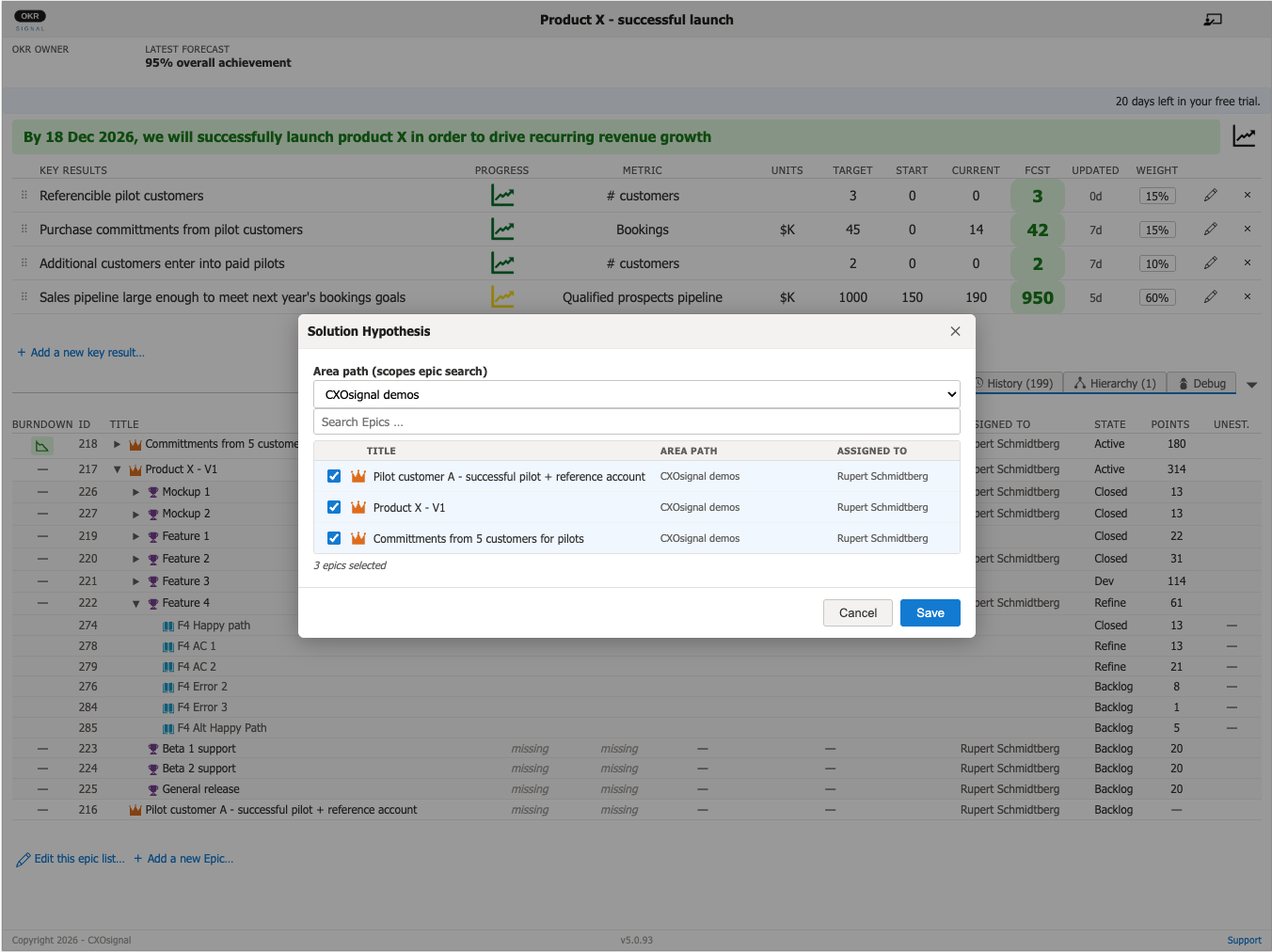
Filter by area path and search for the Epic
Use the Area path selector to narrow the search to the team or area where the Epic lives. A list of matching Epics appears below the search box. Scroll through the displayed Epics list or type part of the Epic title in the search box to find it.
Select the Epic and confirm
Click the Epic you want to connect. Click Connect to confirm. OKRsignal adds the OKR title as a tag on the Epic in Azure DevOps and the Epic appears in the Epics section of the OKRsignal. Repeat Steps 2–4 to connect additional Epics.
Disconnecting an Epic
To disconnect an Epic, click on Edit this epic list, find it in the list of displayed Epics, and deselect it by clicking in the blue checkbox. OKRsignal removes the OKR title tag from the Epic. The Epic itself is not deleted from Azure DevOps. Only the connection to this OKR is removed.