Editing Signals
You can update an existing Signal's name, cadence, rules, or escalation settings at any time. You can also temporarily disable a Signal without deleting it, or delete it permanently when it is no longer needed.
Edit mode required
You must be in edit mode to modify Signals. Click the Edit button on the OKRsignal widget to enter edit mode.
Open the Signals tab
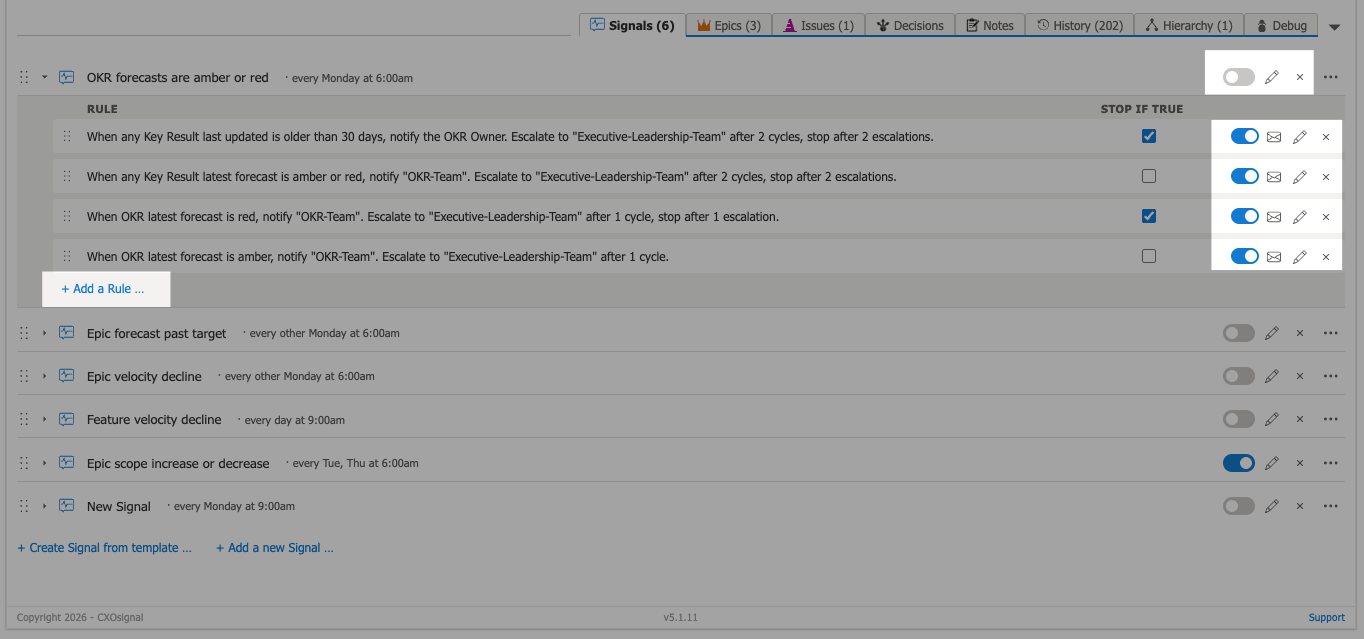
Click on the Edit icon for the Signal or Rule you wish to modify.
Update Signal properties or rules
Change the Signal name or cadence in the Signal Properties panel. To edit a Rule, click its edit icon — update the When clauses, Notify recipients, or Escalation settings as needed. To add a new rule, click Add rule. To remove a rule, click the delete icon on the rule.
Disable or enable the Signal
Use the Enabled toggle at the top of the Signal to pause it without deleting it. A disabled Signal is not evaluated on its cadence schedule but retains all its rules for when you re-enable it.
Save your changes
Click Save to apply your changes. The updated Signal will be evaluated on its next scheduled cadence cycle.
Deleting a Signal
To permanently delete a Signal, open it in the rule editor and click Delete Signal. Deletion cannot be undone. If you are unsure whether you will need the Signal again, disable it instead of deleting it.