Create a new Signal
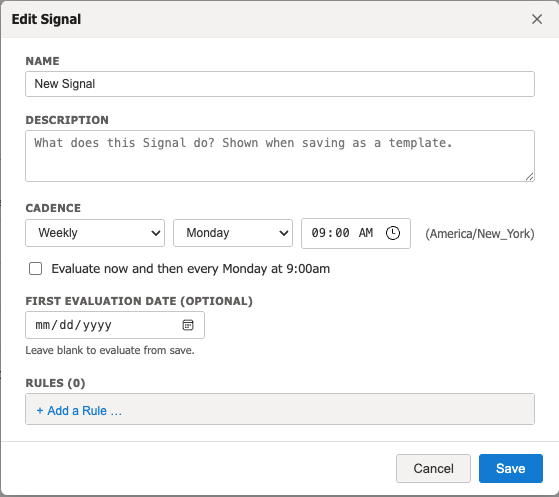
When you create a new Signal from scratch, you need to specify the evaluation cadence and all the rules for the Signal.
Edit mode required
You must be in edit mode to create or modify Signals. Click the Edit button on the OKRsignal widget to enter edit mode.
Open the Signals tab
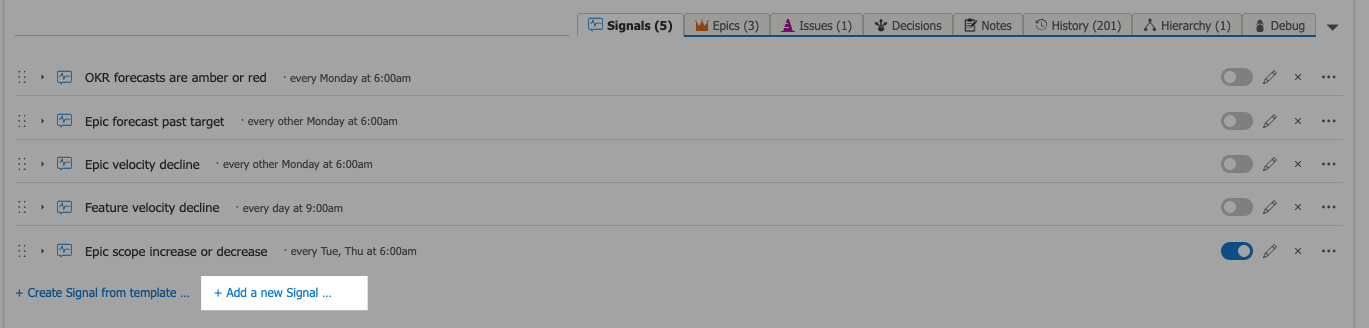
In edit mode, click the Signals tab in the OKRsignal widget. Any existing Signals are listed here with their name, cadence, and enabled/disabled status.
Create a new Signal
Click Add a new Signal.
Set the Signal name and cadence
Add a rule
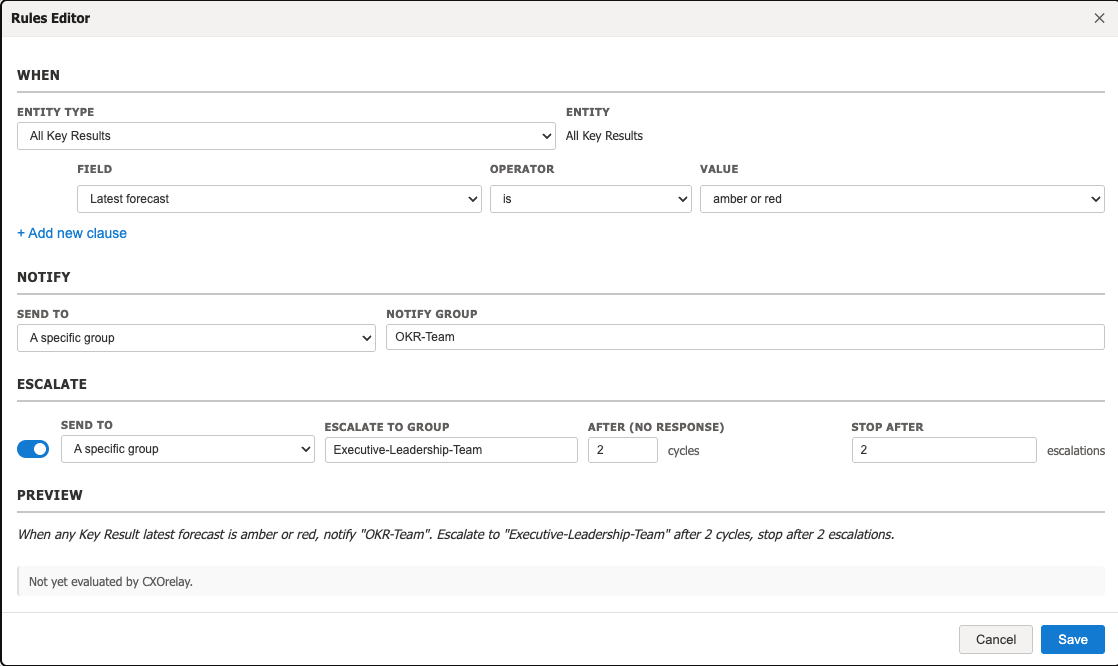
Click Add rule to open the rule editor. Configure the When section, then the Notify section, and optionally the Escalate section. The Preview section at the bottom of the Rules Editor will show you a natural language summary of the rule. Click Save to save the rule. Use this same process to add more Rules to your Signal.
Save and Enable the Signal
When you save the Signal, it will appear on the Signals tab. You can expand the Signal to see all of its Rules.
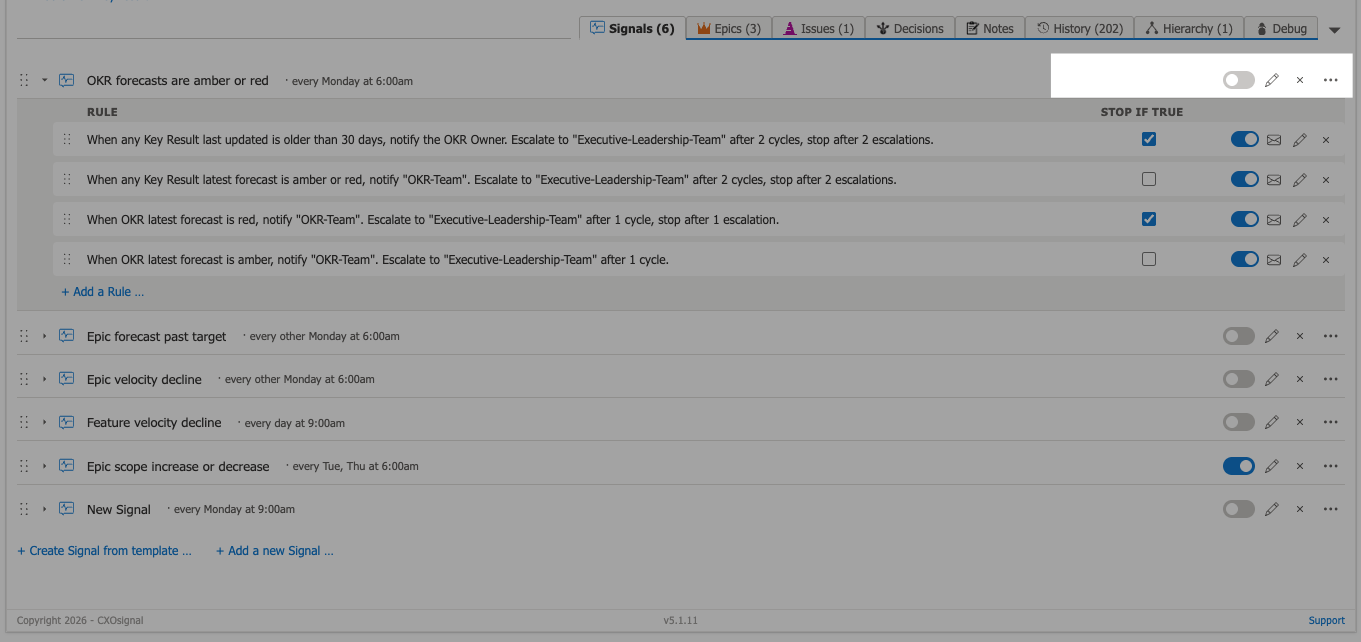
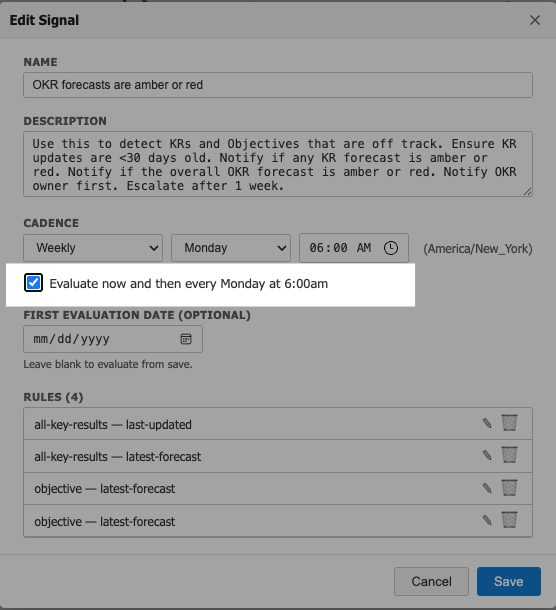
The Signal will be evaluated on its next scheduled cadence cycle. If you enable the Evaluate now check box, the Signal will be evaluated once by CXOrelay in its next 5 minute evaluation cycle, and then revert back to its normal evaluation cadence.