Create a dashboard
Dashboard creation requires Basic ADO access or higher. Typically a Project Administrator or Team Administrator creates the OKR dashboard.
Open Dashboards in your project
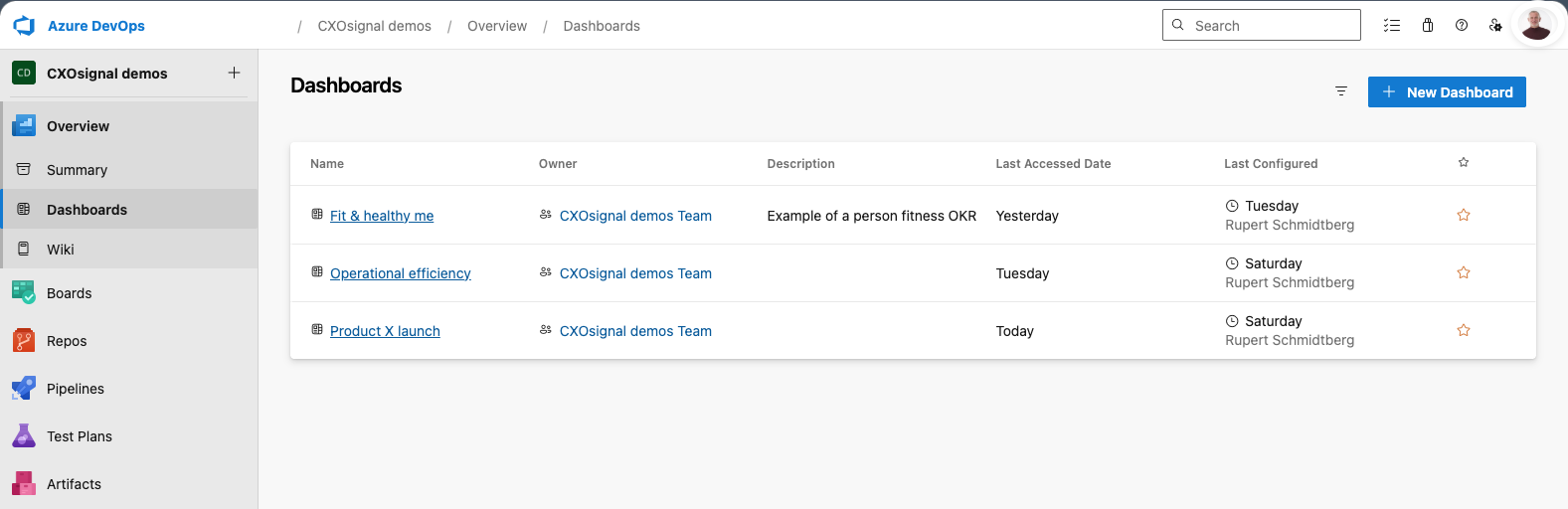
In your Azure DevOps project, click Overview in the left navigation panel, then select Dashboards.
Click the + New dashboard button near the top right of the Dashboards page. A dialog box will open.
Name the dashboard and choose a scope
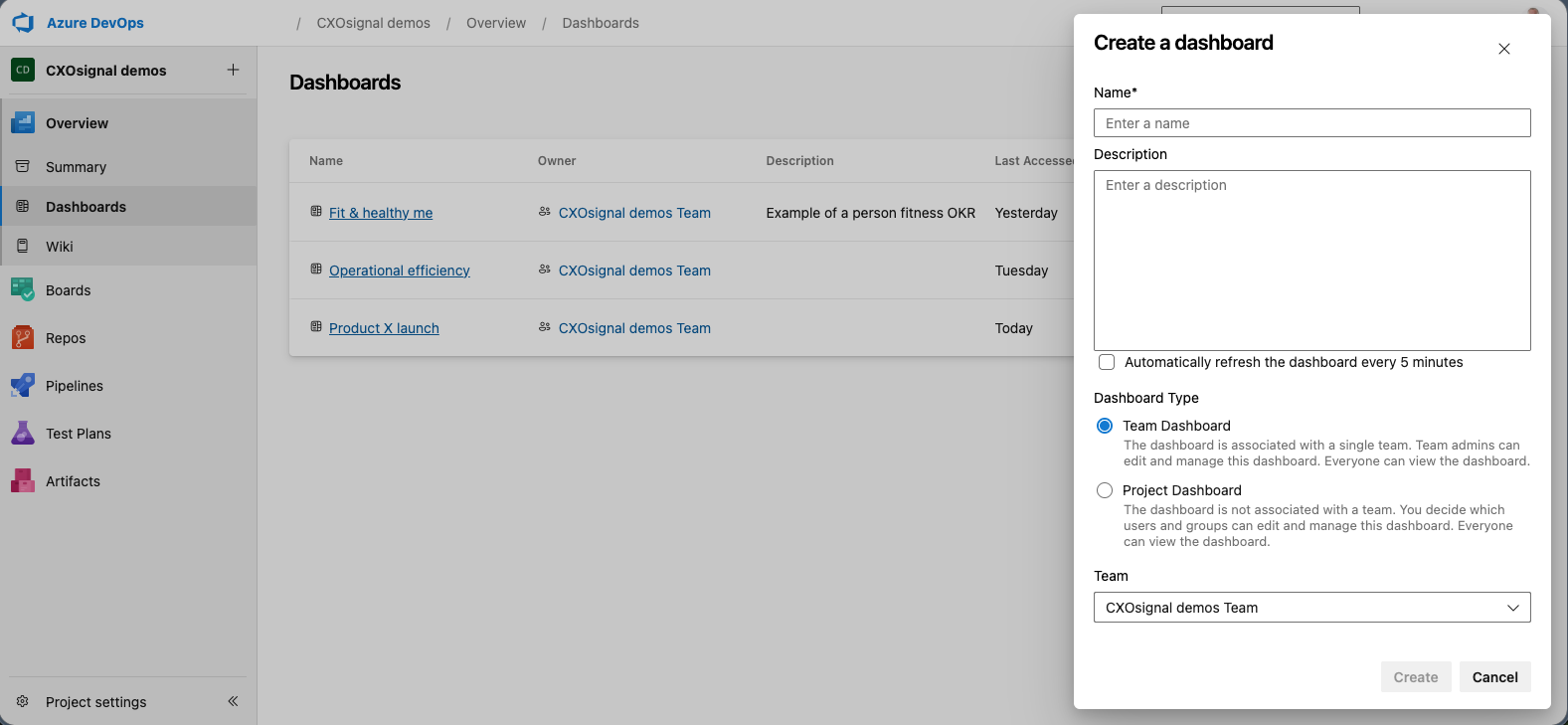
Enter a name for the dashboard — for example, "OKR Dashboard — Q1 2026". Then choose whether this is a Team dashboard or a Project dashboard. Most organisations use team dashboards so the right team members have edit access by default.
If you decide to use a Project dashboard, make sure to edit the dashboard security settings after creating the dashboard and identify the users or groups that should have permission to edit the dashboard. Anyone who does not have permission to edit the dashboard will not have access to the OKRsignal Configuration Panel and will not be able to change configuration settings for the OKRsignal widget once it has been placed on a dashboard.
Leave auto-refresh turned off
The new dashboard dialog includes an Auto-refresh option. Leave it off on any dashboard that contains the OKRsignal widget.
Do not enable auto-refresh on OKRsignal dashboards
When auto-refresh is active, the dashboard reloads on a fixed interval. This interrupts OKRsignal's edit mode mid-session and can discard unsaved changes — for example, a Key Result value you are in the middle of updating. Always keep auto-refresh turned off on dashboards that contain the OKRsignal widget.
Click Create
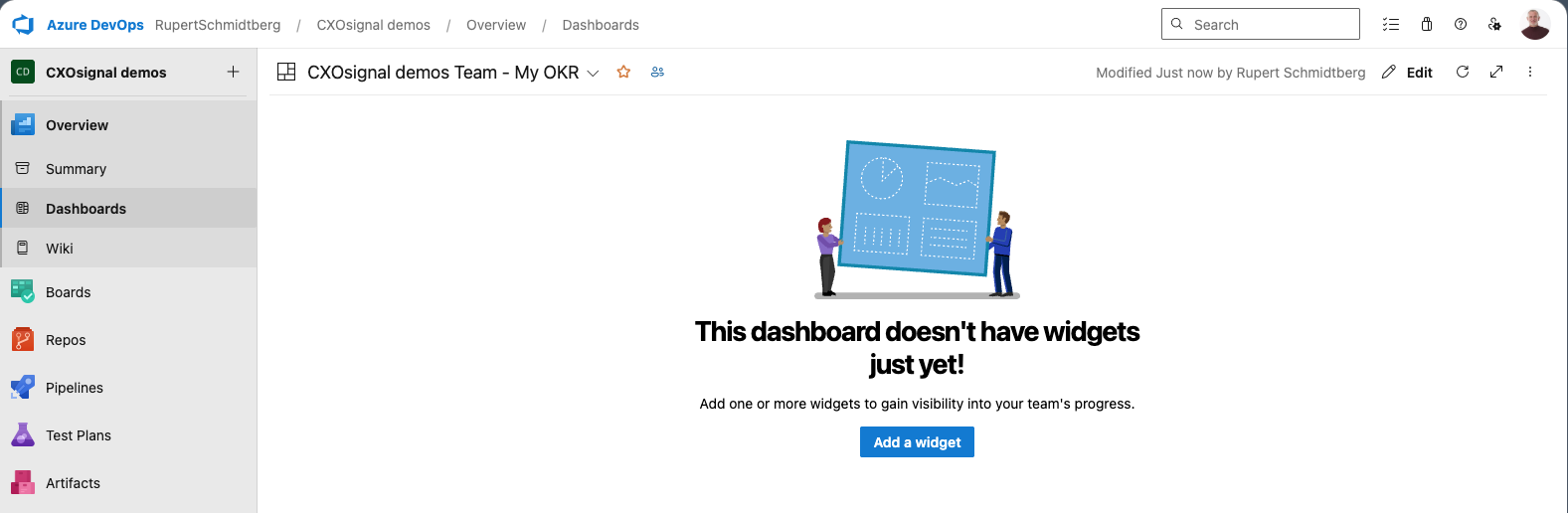
Click Create. Your new, empty dashboard opens. You are now ready to add the OKRsignal widget.