Add the OKRsignal widget to your dashboard
You must have Basic ADO access or higher to add widgets to a dashboard. Free Stakeholder accounts can view dashboards but cannot edit them. If you don't yet have a dashboard to add the widget to, see Create a dashboard first.
Open your dashboard in edit mode
In Azure DevOps, navigate to the dashboard you created for your OKRs. Click the Edit button near the top-right of the dashboard.
The widget gallery slides open on the right side of the screen, showing all widgets available in your organisation.
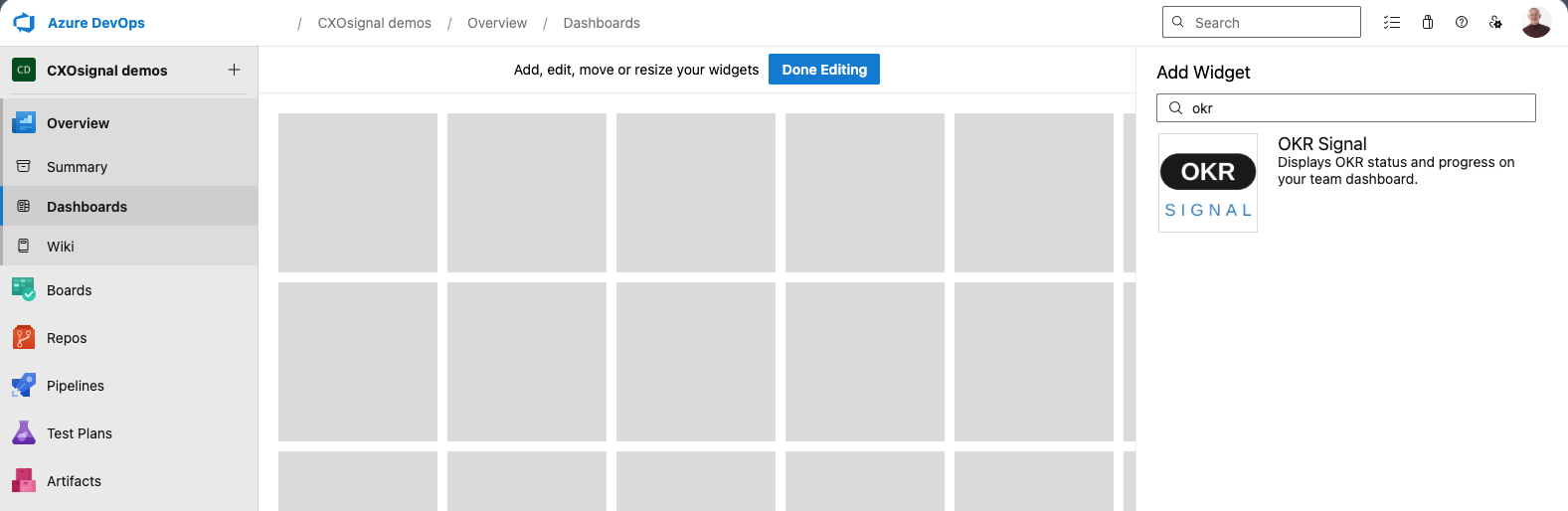
Find OKRsignal
Type OKR in the search box at the top of the gallery to filter the list. The OKRsignal widget will appear in the results.
If OKRsignal does not appear, the CXOsignal extension may not be installed in your organisation. See Install the CXOsignal dashboard extensions for instructions.
Select the OKRsignal widget and click Add, or drag it from the gallery and drop it onto the dashboard canvas.
Click Done Editing
When you click Done Editing, the widget displays with a message saying it needs to be configured. See Define Objective properties for configuration instructions.
Using multiple OKRsignal widgets on one dashboard
You can place more than one OKRsignal widget on a single dashboard — each instance tracks a separate OKR independently. This is technically supported but not recommended as a general practice: each widget makes its own data requests, so a dashboard with many OKRsignal widgets will take noticeably longer to load.
If you need to show multiple OKRs together, there are better approaches depending on your situation. See Showing all OKRs on a single dashboard for tips and scenarios.