Start with Signal Templates
Signals are powerful, but poorly configured Signals create noise that recipients start ignoring. These recommendations help you set up Signals that stay useful over the life of an OKR.
OKRsignal includes bundled Signal Templates covering the most common monitoring scenarios. Use the ones marked RECOMMENDED to start, then customize the conditions and recipients. This is faster than building rules from scratch and ensures you start with a proven rule structure.
Open the Template Library
Open the Signals tab and click on Create Signal from template
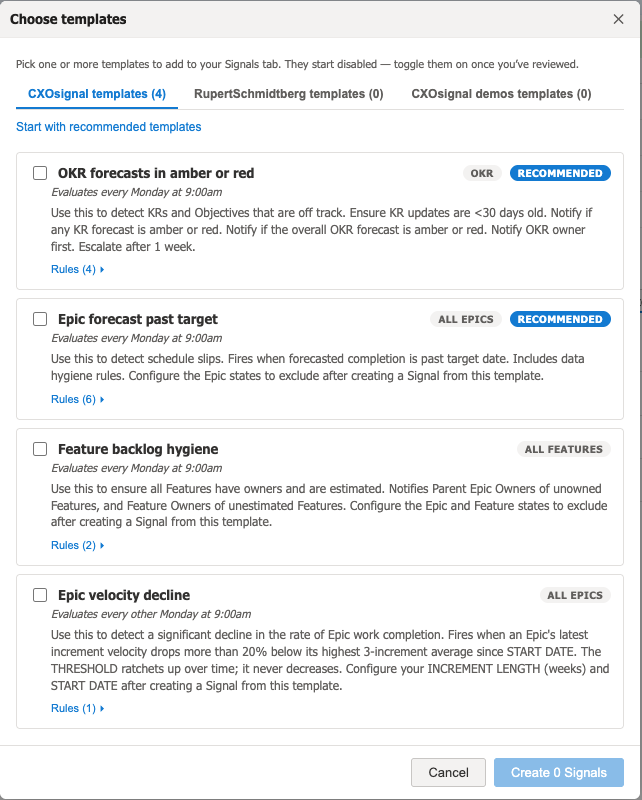
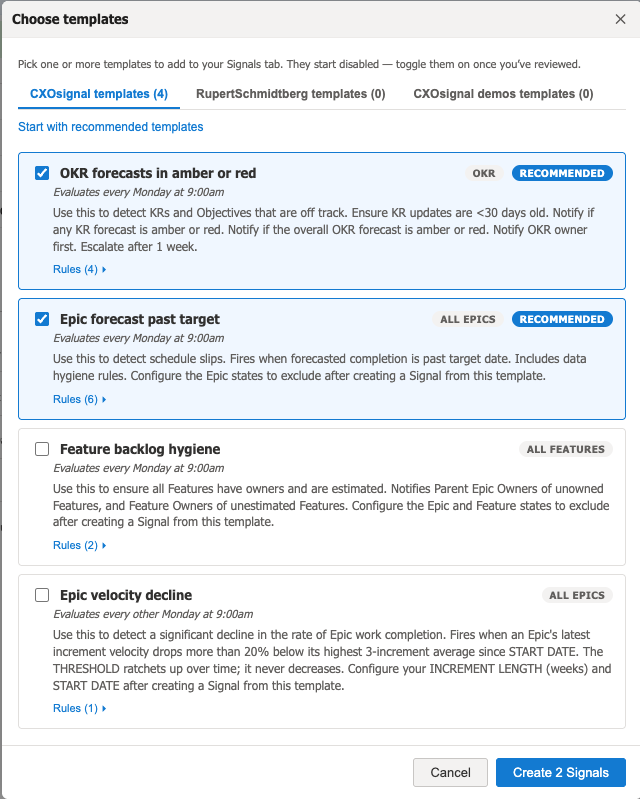
Import recommended templates
Click on Start with recommended templates and then click on Create Signals.
Customize rules
Once the Signals are copied to the Signals tab on your instance of OKRsignal, you will see the rules that you need to customize for your project or organization.
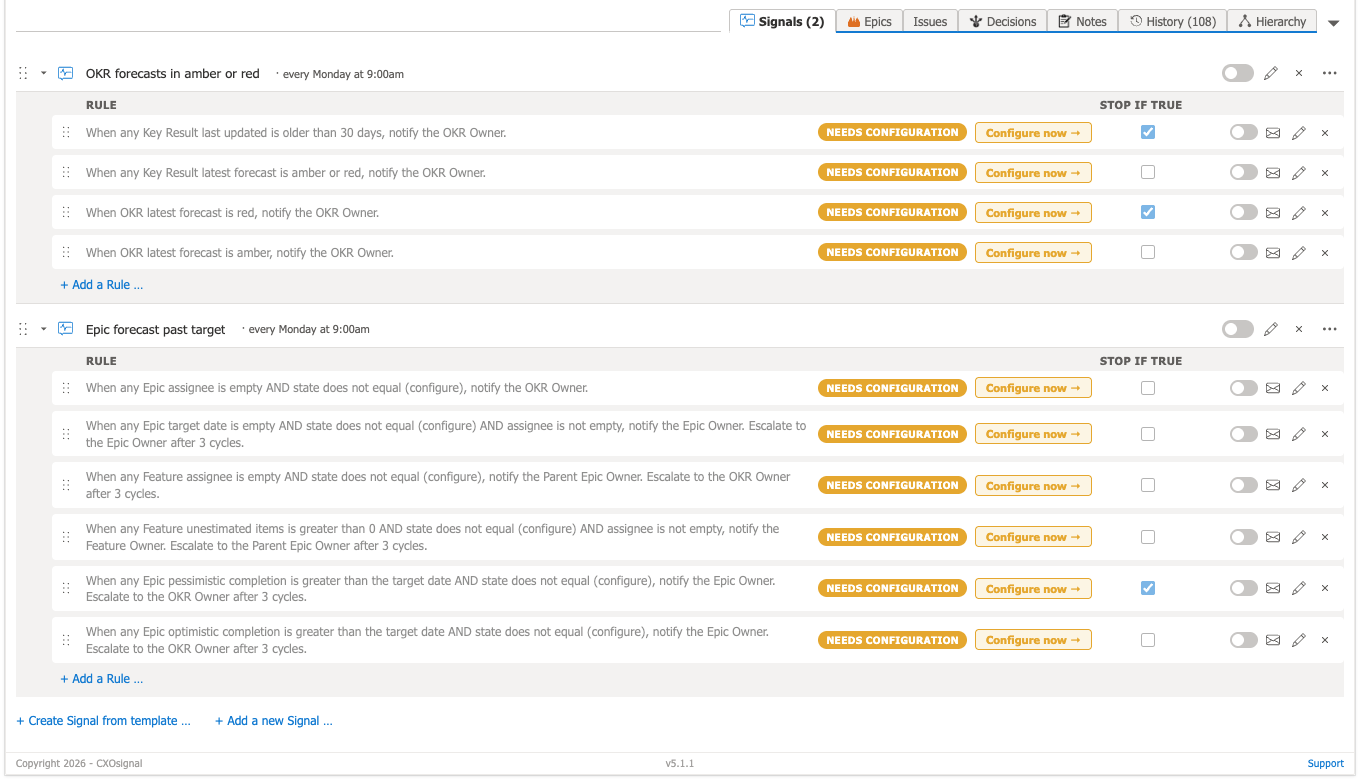
For each rule, click the Configure now button to open the Rules Editor. Each field that you need to customize is shown in yellow. Enter a value for your project and click Save.
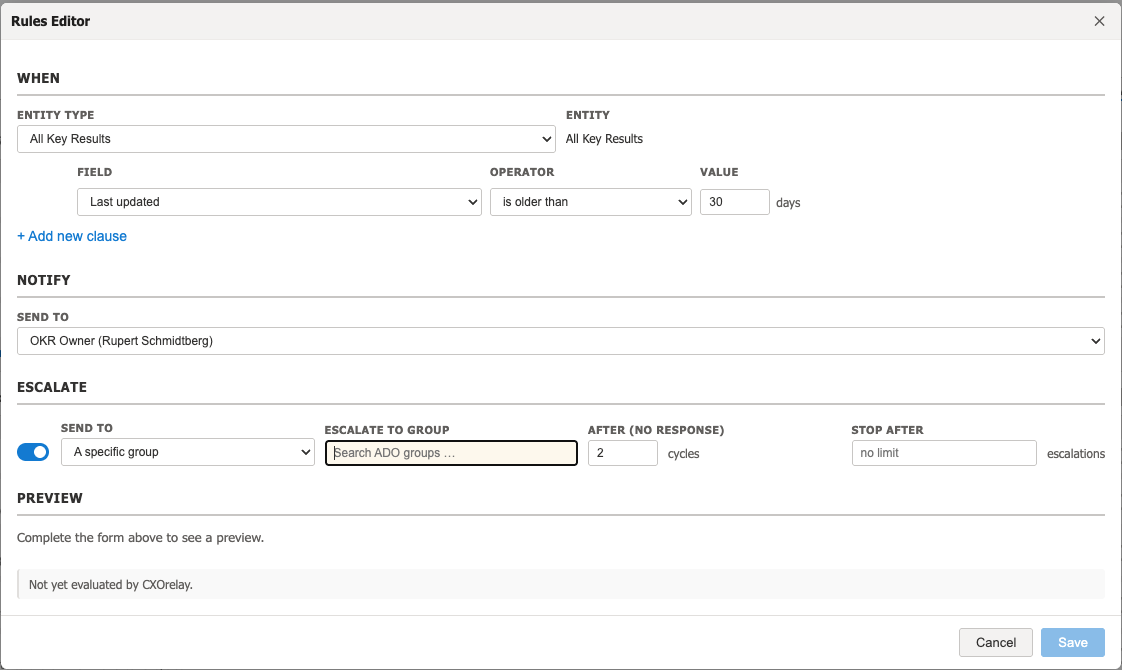
When all the required fields have been entered, the Needs Configuration alert will no longer be displayed.
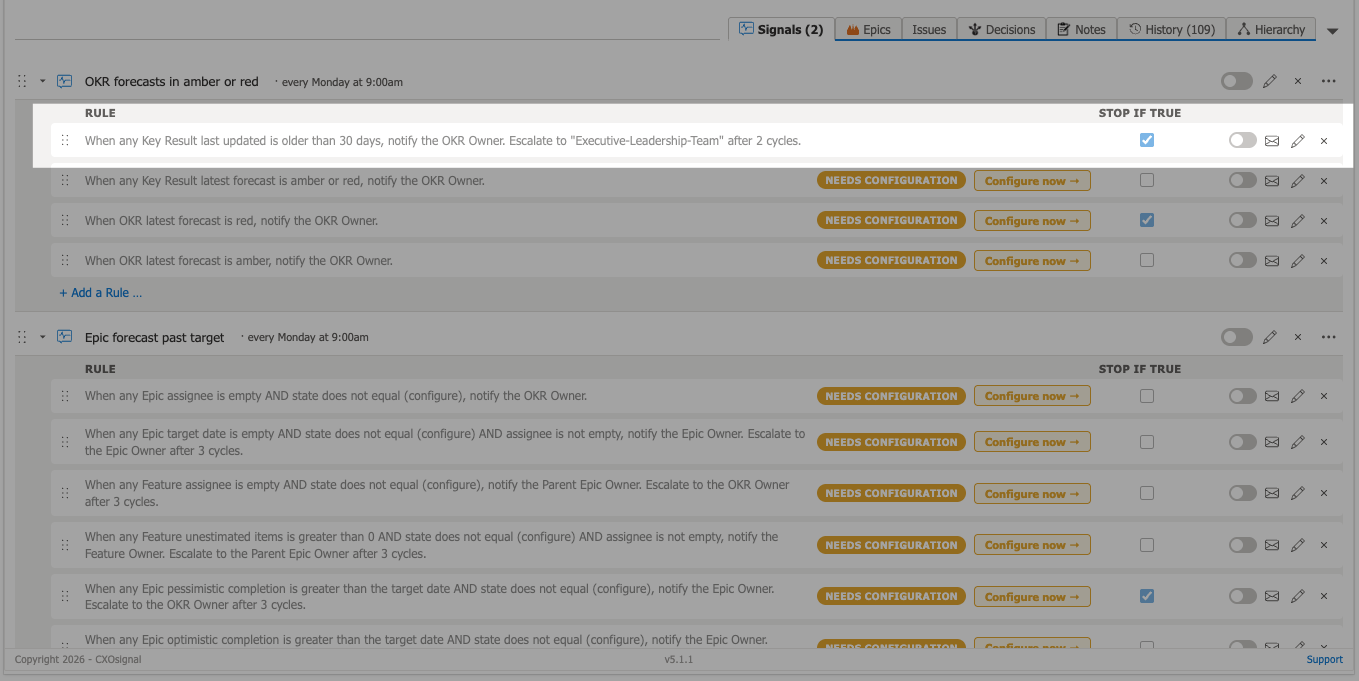
Repeat this process for all the rules in each Signal.
Once all the Rules are configured, enable the Signal and all its Rules.
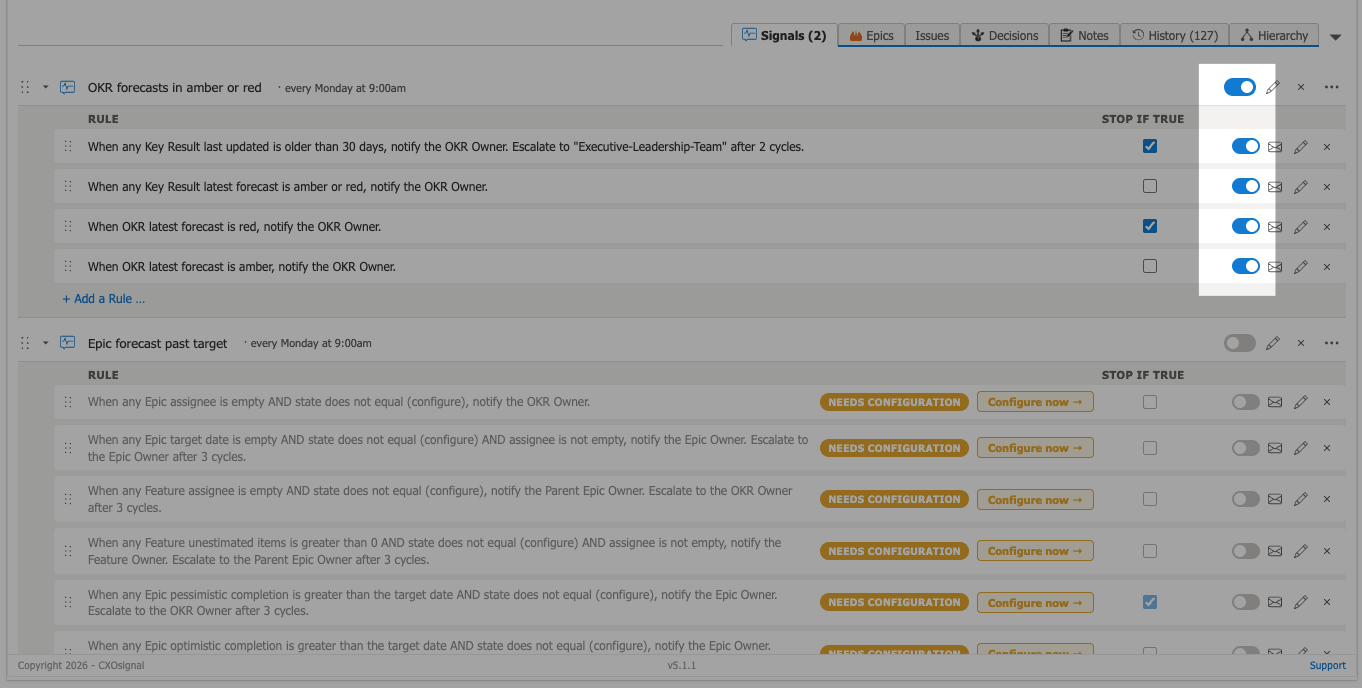
Send test notification
Alert
CXOrelay must be installed and configured prior to sending test emails
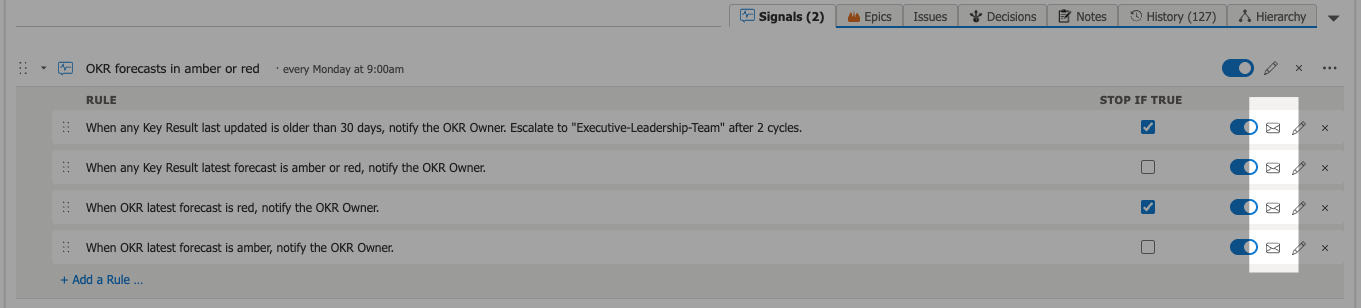
Click on the email icon for a Rule to send a test email to yourself.
Note
CXOrelay runs evaluation cycles every 5 minutes. The test email will arrive within 5 minutes.
Other Customizations
Match the cadence to your review rhythm
All the Rules for a Signal are evaluated on the same cadence. Click on the edit icon for the Signal to adjust the evaluation cadence.
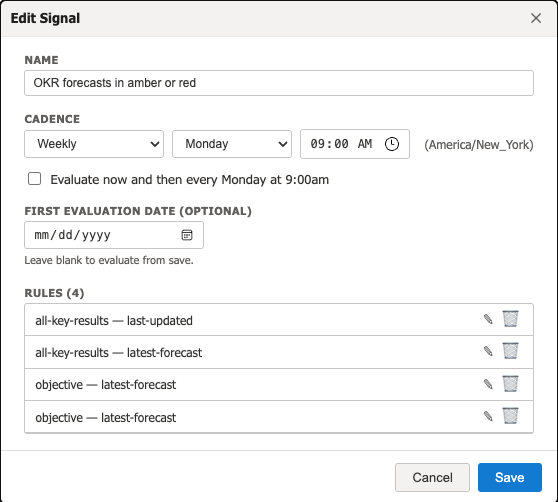
Avoid setting a cadence faster than your team can reasonably respond to the notifications.
Set escalation thresholds conservatively
Before setting escalation thresholds, have a conversation with the people receiving the escalation. Ask them when they want to be informed. Escalation is most effective when it is rare. Set your escalation thresholds so that you give recipients of the original alerts a reasonable amount of time to resolve the situation while still escalating genuinely persistent problems.
Always set a Stop after N escalations limit. Without a stop limit, a persistent problem can generate an indefinite stream of escalation emails that the recipient will tune out.
Use STOP IF TRUE to create priority tiers
If you have both a critical rule (for example, "color is Red and deadline is within 7 days") and a lower-priority summary rule (for example, "color has turned amber"), enable Stop if true on the critical rule. This ensures that when the critical condition is met, only the high-priority notification is sent — recipients get one clear message rather than multiple overlapping alerts in the same evaluation cycle.