How Signals Work
A Signal is a set of notification rules attached to an instance of the OKRsignal widget. OKRsignal provides the user interface for creating and managing Signals.
The companion CXOrelay widget evaluates each rule against live data and, if the Signal's conditions are met, sends a notification by email. A Signal can contain rules which check for data hygiene, rules which check for deviations from the current plan, or rules which check for changes in scope or speed of delivery.
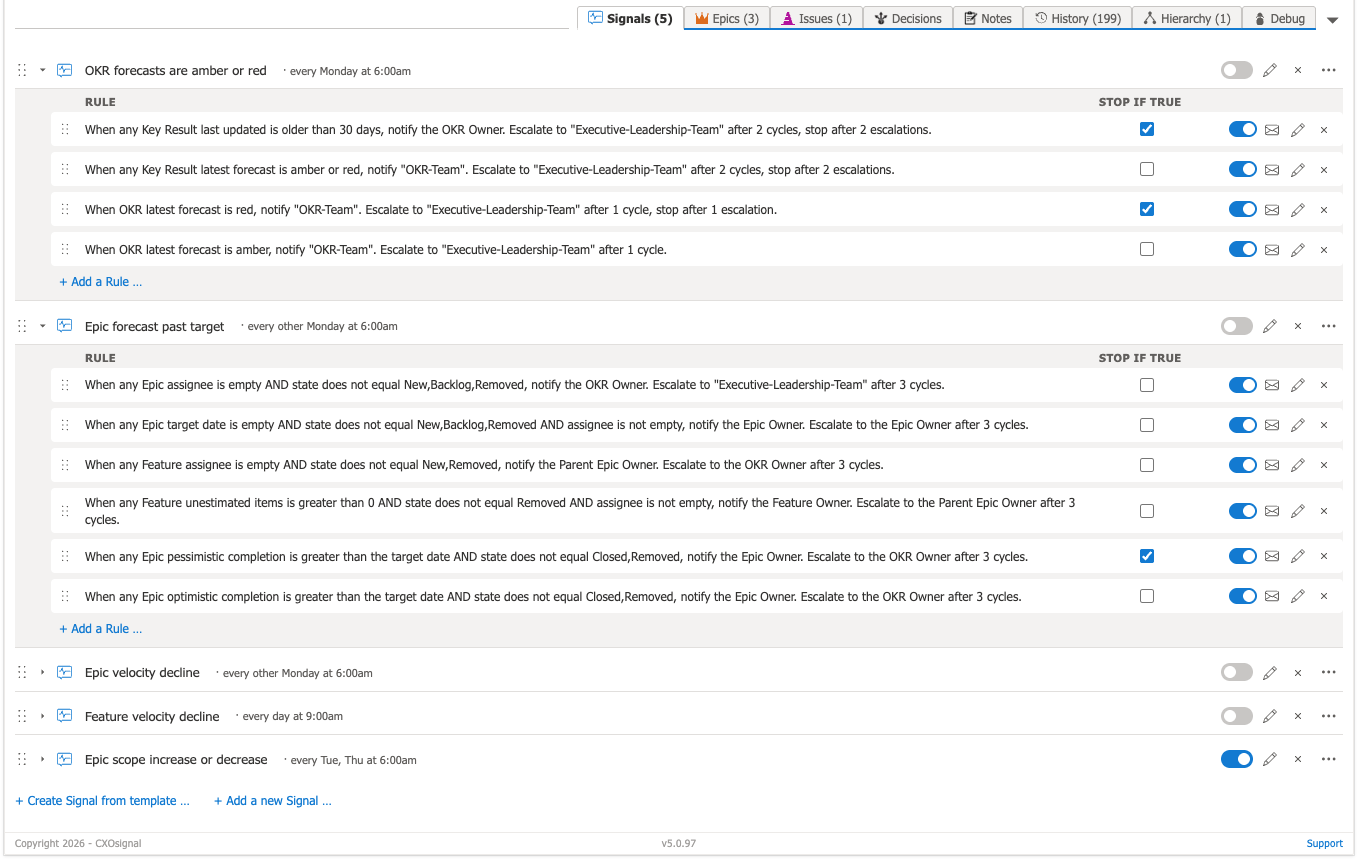
Signals, rules, and cadences
Each Signal has a name, a cadence, an enabled/disabled toggle, and one or more rules. The cadence controls how often all rules in that Signal are evaluated. Each rule is independent — when its conditions are met, it fires its own notification.
| Cadence | When it runs |
|---|---|
| Daily | Once per day, at the scheduled time |
| Weekly | Once per week, on the day you specify |
| Biweekly | Every two weeks |
| Monthly | Once per month, on the day you specify |
Rule structure: When and Notify
Each rule has two parts:
- When — defines the condition to evaluate. You specify the entity type to monitor (for example, a Key Result, an Epic, or an Issue), and one or more clauses that must all be true for the rule to fire. For example: "Key Result named Increase MRR where color signal is Red."
- Notify — defines who receives the notification when the condition is met. You can notify the OKR Owner, an Epic Owner, or a specific group of users.
STOP IF TRUE
Each rule has a Stop if true option. When enabled, if this rule fires during an evaluation cycle, OKRsignal will not evaluate any subsequent rules in the same Signal for that cycle. Use this to create prioritized rule sequences — for example, send a critical alert first and suppress the lower-priority rules if it fires.
Escalation
Each rule can optionally include an escalation path. If the rule's conditions remain true for a specified number of consecutive cadence cycles without being resolved, the Signal sends an escalation notification to a different recipient — typically a manager or executive. You can configure:
- Escalate to — who receives the escalation notification
- After N cycles — how many consecutive cycles the condition must be true before escalating
- Stop after N escalations — the maximum number of escalation notifications to send before stopping
Signals are per-OKR widget
Signals are specific to a single OKR. They are not global. Each OKR owner manages the Signals on their own widget. An easy way to implement the same Signals for multiple OKRs is to copy Signal Templates from the Template Library into your OKR.