Show all OKRs on a single dashboard
What this article covers
This article explains how to build an executive summary dashboard that displays all of your organization's OKRs in one place, while keeping each OKR fully editable on its own dashboard. This is the most common use of OKRsignal's Master / Follower feature.
How it works
Each OKR lives on a Master widget on the team's own dashboard. Only people licensed to edit OKRsignal widgets (i.e., members of the CXOsignal-OKR-Signal-Users group) and who have edit access to the Master OKR's dashboard (set this with Dashboard permissions) can edit all data there — Key Results, Signals, Epics, Issues, Decisions, and Notes. On the executive summary dashboard, you place a Follower widget for each OKR. A Follower displays a live, read-only copy of its Master. Executives see everything in one place; OKR Editors edit in one place.
Followers do not duplicate data — they read directly from the same storage as the Master. Any update an OKR Editor makes on the Master appears on every Follower automatically.
Follower widgets do not consume additional CXOsignal seats — a seat is required only for users who create or edit OKR data. Stakeholders who view the executive summary dashboard do not need a CXOsignal license. See Grant Stakeholder access.
Confirm each OKR has a Master widget
Before creating the executive summary dashboard, confirm that every OKR you want to display already has a configured Master widget on a team dashboard. If any OKR is missing, follow Add the OKRsignal widget to your dashboard and Define Objective properties to set them up first.
Make a note of the dashboard each Master lives on — you will need to identify them by name when linking Followers.
Create the executive summary dashboard
In Azure DevOps, navigate to Dashboards and click New dashboard. Give it a clear name such as "OKRs — Executive Summary" or "Company OKRs — 2026". Set the visibility to allow your executive stakeholders to access it.
Enable auto-refresh on the dashboard
Click Dashboard Settings on the new dashboard, then enable Automatically refresh the dashboard every 5 minutes.
When an OKR Editor updates Key Results on a Master widget, the change is stored immediately — but it only appears on Follower widgets when the page refreshes. Auto-refresh ensures executives always see the latest data without needing to reload the page manually.
Why this is safe here
The general guidance to leave auto-refresh off on OKR dashboards applies to dashboards containing Master widgets, where auto-refresh can interrupt editing and discard unsaved values. Executive summary dashboards contain only read-only Follower widgets, so auto-refresh is safe to enable.
Add an OKRsignal widget for the first OKR
Click Edit on the new dashboard, then Add a widget. Search for OKRsignal and add it. Resize and position it as needed.
Configure the widget as a Follower
Hover over the widget, click the "..." menu, and select Configure.
On the Objective tab, locate the Widget type control at the top and select Follower. The standard Objective fields disappear and are replaced by a single "Link as follower of:" dropdown.
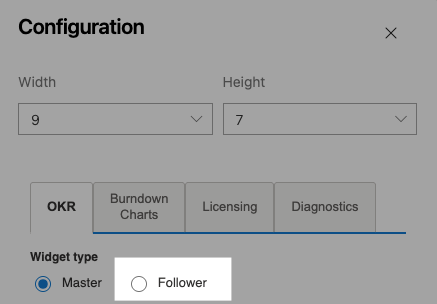
Open the dropdown and select the Master widget for this OKR. Masters are listed by their OKR title and the dashboard they belong to. Click Save.
The widget immediately displays the OKR data from the Master — title, owner, Key Results, signal color, and status. The widget is read-only; all editing happens on the Master.
Turn off the Tab bar
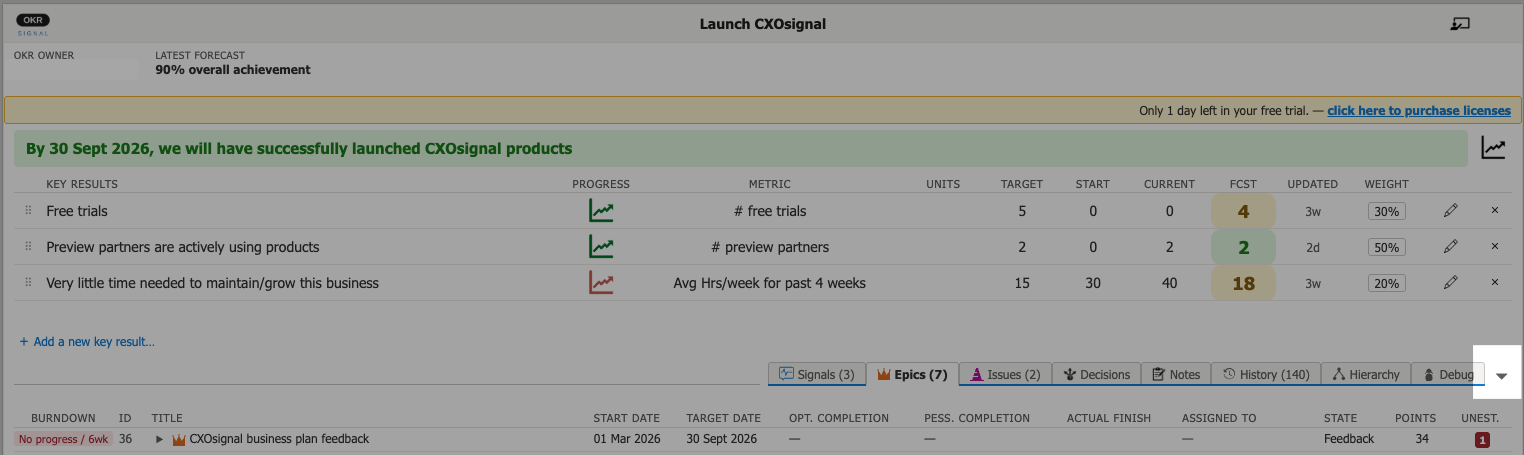
If you want to show only the Objective and the Key Results sections of the OKRsignal widget, turn off display of the tab bar by clicking on the expand/collapse control on the right edge of the tab bar.
Repeat for each OKR
Add a new OKRsignal widget to the dashboard for each remaining OKR and configure each one as a Follower linked to its respective Master. Arrange the widgets on the dashboard so the layout makes sense to your executives — for example, grouping by team, strategic theme, or signal color.
Share the dashboard with your executives
Copy the dashboard URL from your browser's address bar and send it to each executive stakeholder. If a stakeholder cannot access the dashboard, confirm they have at least Reader access to the Azure DevOps project. See Grant Stakeholder access for the full setup.
Executive summary dashboard is ready
Executives can now view all OKRs on a single dashboard. OKR Editors continue to edit data on their individual team dashboards, and every change is reflected on the executive summary automatically.